If you’ve ever tried to blur part of an image—really properly blur it—you know the drill. You open some random “free online tool”, upload your photo, and… well, half the time the blur looks like garbage. Or it slaps a single chunky rectangle over the whole face and calls it a day. Or worse: you realize halfway through that it’s uploading every image to some server you didn’t consent to.
I run a small AI image/video generation site over at Towan AI. Nothing fancy, just a place where I tinker with models and help people generate visuals. But here’s the thing: no matter how good your AI output is, you always end up needing to blur something afterward. Maybe it’s a random face in the background. Maybe it’s a license plate. Or you’re working with a mockup that has placeholder text you don’t want people actually reading.
So the other day I went hunting for a solid blur tool. Found a bunch of half-baked options. Most of them either:
- Only do full-image blur (useless for selective work)
- Force you to pay after three clicks
- Or feel so sketchy that you’d never upload anything remotely private
Then I stumbled across blur-image.org. And honestly? It’s surprisingly good. Like, actually good. So I figured I’d write this up for anyone else who needs real blur controls without the headache.
What makes this different
Most “blur tools” are one-trick ponies. This one has six completely different modes, and each actually serves a purpose. Here’s what I mean.
Selective Blur (the one I use constantly)
This is basically a brush. You paint over exactly what you want blurred, adjust the strength on the fly, and you can create multiple separate blur zones in the same image. No weird masks, no layers to manage. It’s all stored locally in memory as coordinate maps—nothing gets saved or sent anywhere. Try Selective Blur Online here.
I’ve used this to blur out logos, messy desks in the background of product shots, and even just to soften distracting elements. Works exactly how you’d hope.
Full Image Blur
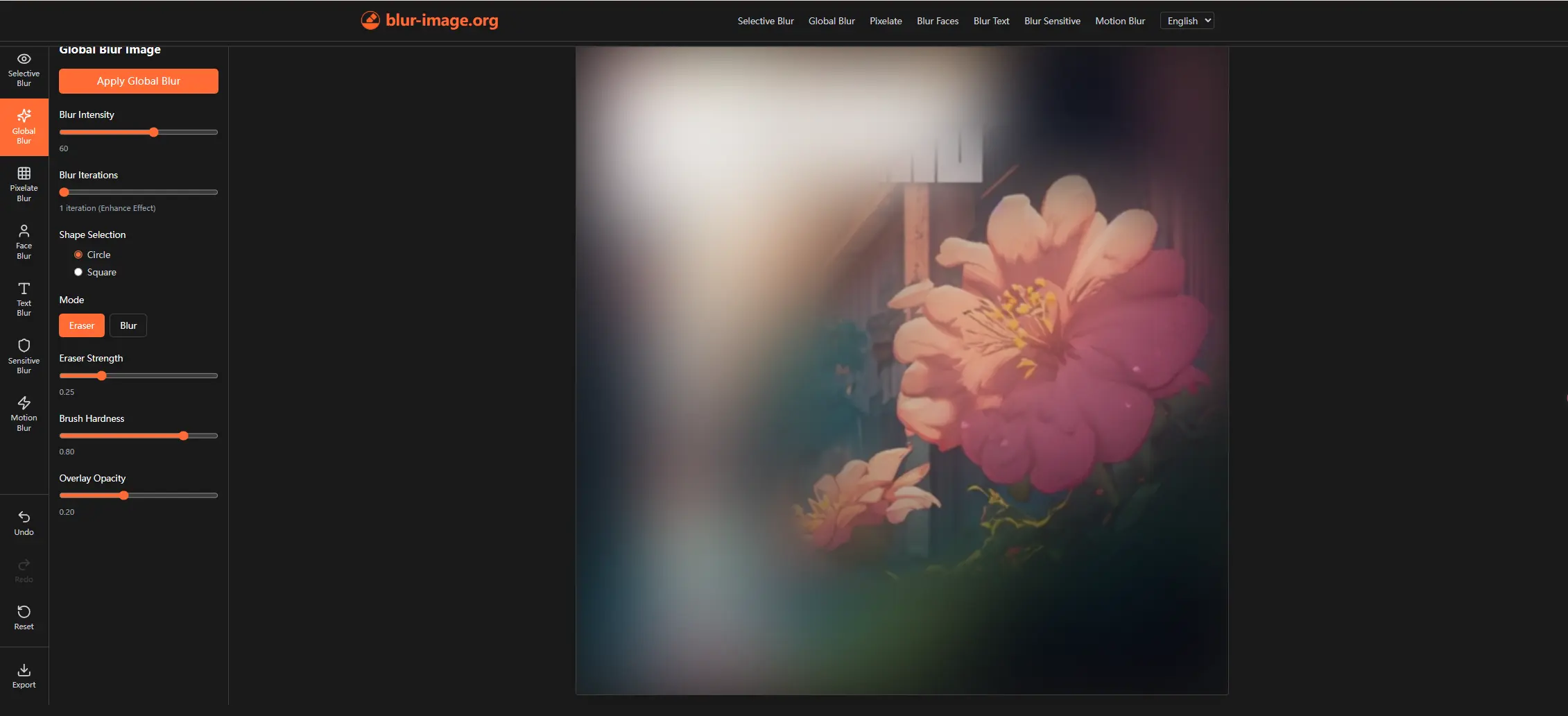
Sometimes you just want the whole thing softened. That’s what this is. But the clever part? After you apply the global blur, you can paint back the sharp areas. So you get that dreamy depth-of-field look where only the background is blurred and the subject stays crisp. Try Full Image Blur here.
Face Blur (runs locally—this is a big deal)
Here’s where I got actually impressed. The face detection runs in your browser using TensorFlow.js. No upload, no API call to some random server. It detects multiple faces, draws boxes around them, and lets you apply Gaussian blur or pixelation.
And because detection is never perfect on the first go (let’s be real), you can manually adjust the boxes afterward. Stretch them, move them, delete the ones you don’t need. Perfect for group photos or candid shots. Try Face Blur here.
Sensitive Information Blur
Okay, this one is wild. It runs OCR locally—again, no server—and scans for phone numbers, email addresses, IDs, and physical addresses. Then it offers to blur them automatically.
I tested this with a screenshot of a fake internal doc I use for testing. It picked up the mock email and a fake phone number immediately. If you’re sharing confidential work stuff, internal screenshots, or even just receipts with order numbers, this is genuinely useful. Nothing leaves your device. Try Sensitive Information Blur here.
Text Blur
Similar idea, but for general text. It identifies text blocks at the word or line level. I’ve been using this for UI mockups and code screenshots where I want to obscure certain lines without making the whole image unreadable. You can blur or pixelate just the text regions. Try Text Blur here.
Pixelate Image
Sometimes blur isn’t enough. Pixelation is actually stronger for privacy because it destroys detail instead of just softening it. This tool lets you pick the block size and apply it to the full image or selected areas. Great for faces you really don’t want recognized. Try Pixelate Image here.
Motion Blur
And then there’s this one, which is more creative than practical. Directional blur along any angle—looks like a photo taken from a moving car or a quick pan shot. It’s GPU-accelerated where possible, so it feels smooth even on larger images. Try Motion Blur here.
Why I actually trust it
Here’s the thing that made me want to write this post. Everything runs client-side. The face detection, the OCR, the brush coordinates—all of it stays in your browser’s memory. Nothing is serialized, nothing is sent to an external endpoint.
That’s rare. Most “free” tools are free because you’re the product—they’re slurping up your images for training data or ad targeting. This one doesn’t do that. You can literally unplug your internet after the page loads and it still works.
When do I use it?
Honestly, almost every time I finish generating something on towan.net. I’ll pull the output over to blur-image.org, clean up any faces in the background, maybe pixelate a car plate, then save it. Takes two minutes.
I’ve also started using it for:
- Redacting info from screenshots before sharing them on Slack
- Blurring sensitive data in tutorial videos (export frames → batch blur → rebuild)
- Making quick mockups where placeholder text needs to be unreadable
Bottom line
If you’ve been making do with garbage online blur tools or wrestling with Photoshop just to hide a phone number, give the free image blur tool a shot. It’s free, it works offline, and it actually respects your privacy.
That’s rare these days.
Hope this helps someone out there. If you end up using it for something creative (or just to finally erase that one weird face in your vacation photo), let me know. — Cheers